SmartCaptions for Premiere Pro 26.2+
This is our new-generation plugin. It transcribes your footage — including Hebrew and Arabic, which Premiere's own speech-to-text does not cover — and writes the result straight into Premiere's transcript.
From there you work inside Premiere: text-based editing in the Text panel, and captions built with Premiere’s own "Create captions from transcript". Nothing to export, nothing to re-import.
Requires Adobe Premiere Pro 26.2 or later.
How it works
1. Choose a clip or the whole sequence
Select a clip in the project panel or on the timeline, or transcribe the active sequence. The plugin opens as a panel inside Premiere.
2. Transcribe — in any language
Pick the spoken language or let it be detected. Hebrew and Arabic are included; Premiere's built-in speech-to-text does not transcribe them. You can also have the transcript translated into another language.
3. Edit and caption without leaving Premiere
The transcript is attached to your clip or sequence and shows up in Premiere’s Text panel. Text-based editing and "Create captions from transcript" then work exactly as they do with an Adobe transcript.
What it looks like
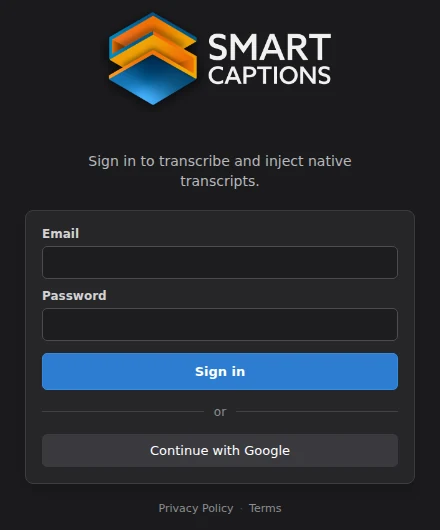
Sign in once with your SmartCaptions account.
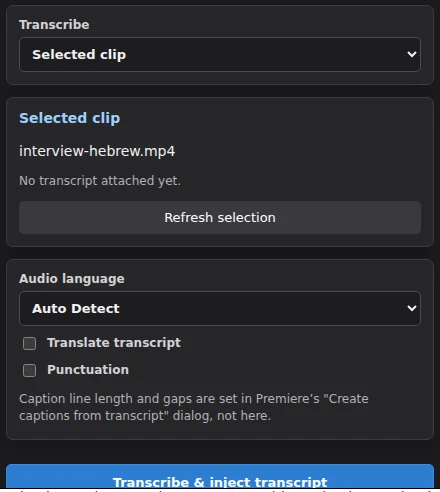
Transcribe the selected clip; caption line length and gaps stay in Premiere's own dialog.
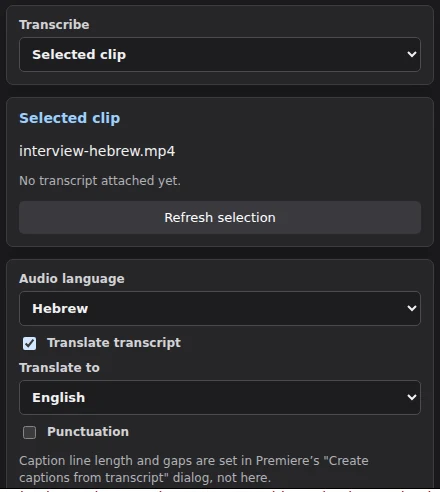
Hebrew audio, translated to English — a pairing Premiere's own transcription cannot do.
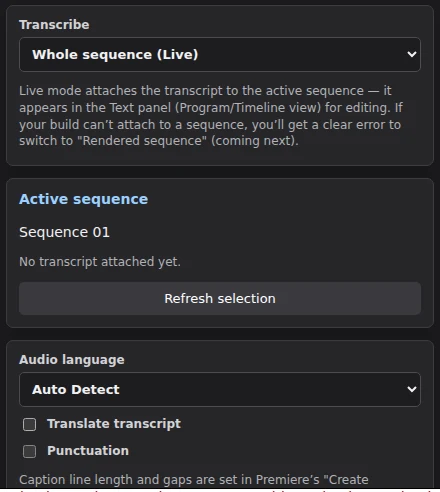
Or transcribe the whole active sequence at once.
How this differs from the classic extension
The classic SmartCaptions extension writes the captions itself and runs on every Premiere Pro version we support. It has more controls of its own — caption styling, line breaks, timing options — because it builds the caption track.
This plugin does something narrower on purpose: it fills Premiere’s own transcript and hands the rest to Premiere. Caption length, gaps and styling are set in Premiere’s "Create captions from transcript" dialog, not in the plugin. The feature set here is smaller today, and it grows as we add to it.
We are building on this one because Adobe is retiring the technology the classic extension runs on. If you are on Premiere Pro 26.1 or earlier, the classic extension is the one you want.
Questions about this plugin
Which Premiere Pro version does it need?
Premiere Pro 26.2 or later. On 26.1 or earlier, use the classic SmartCaptions extension instead.
How do I install it?
From its Adobe Marketplace listing, in a couple of clicks. There is no extension manager and no .zxp file to handle by hand, and updates arrive through the Marketplace.
Can I keep the classic extension installed too?
Yes. Both can be installed at the same time and neither interferes with the other, so you can keep the classic panel for projects on older Premiere versions.
Does it use the same account and the same minutes?
Yes. One SmartCaptions account covers both plugins and the web app, and they draw on the same monthly allowance. Signing in here does not need a second subscription.
Get it from the Adobe Marketplace
Installs in a couple of clicks from Adobe's own Marketplace — no extension manager, no handling files by hand. Requires Premiere Pro 26.2 or later.
Install from the Adobe Marketplace